**1. **Log into your cPanel account.
2. In the "Software" section, click on "Softaculous App Installer" Icon.
**3. **cPanel will redirect you to the Softaculous Panel.
**
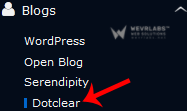
4. ** On the left side of your screen you should locate the "Blogs" category. Click on it and then click on the "Dotclear" link that will appear.
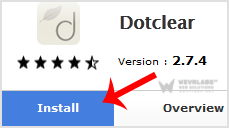
**5. **Click on the "Install" button
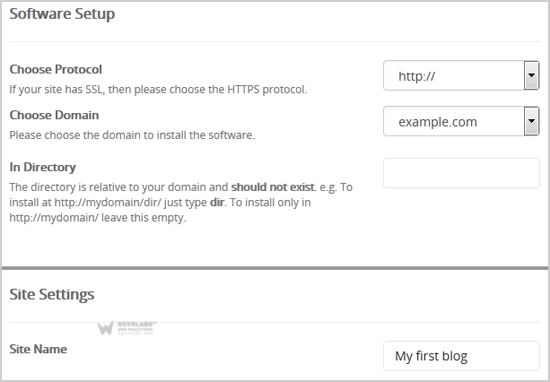
**6. **Fill the necessary field under the "Software Setup" field:
-
Choose Protocol: You can leave this as it is.
-
**Choose Domain: **If you don't have multiple domains, leave this as it is.
-
In Directory: If you want to install this in a directory, for example example.com/directory, enter the directory name. Otherwise, leave this blank to install in your main domain example.com
7. Under the "Site Settings" field:
- Site Name: Enter the name of your website, such as "my first website".
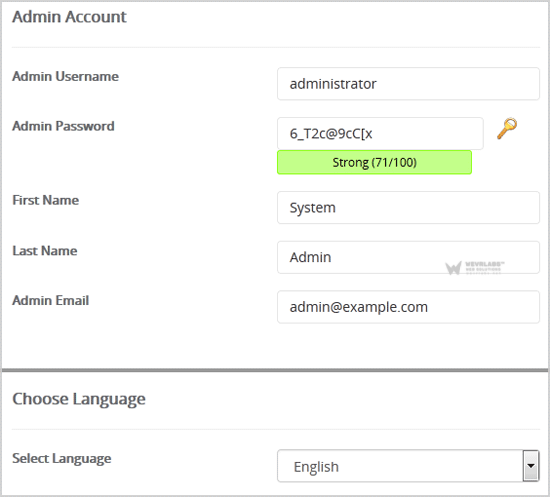
**8. **Under the "Admin Account" field enter the following information:
-
Admin Username: Your new Dotclear username (for security reason do not use the "Administrator" or the "Admin" username.)
-
**Admin Password: **Use a strong password.
-
First Name: Enter your first name
-
Last Name: Enter your last name.
-
Admin Email: Your e-mail address.
Note: Copy the admin username and password on a notepad because you will need these login details to access the admin area of your Dotclear blog.
Choose Language: You can chose the language of your Dotclear blog. The default language of Dotclear is English.
9. **Advanced Options: **Leave this as it is, unless you want to change the database name or take an automated backup. Please note that taking frequent backups may take a lot of disk space.
Finally, scroll down to the end of page and click on the Install Button.